5.5 KiB
tiny-wb



Scan a frequency range with your tinySA, see the spectrum in your terminal, and save the measurements as CSV. Start with one scan; no configuration-file editing is needed.
Get running
You need a powered tinySA Basic, Ultra or supported Ultra+, a data-capable USB cable, and access to its serial port. Close other software using the tinySA. For a first communications check, leave external RF sources disconnected. Before connecting a signal, read the safe-operation guide.
To build from source, install Rust 1.88 or newer, then run:
git clone https://proxy.dandaedre.com/gitea/idle-org/tiny-wb.git
cd tiny-wb
cargo run --locked --release
Already have the checkout? Run just the last command from its root. On Linux,
building also requires the libudev development package and pkg-config; this
checkout's linker configuration uses lld.
Your first scan
- Connect by USB and choose the port. On the connection screen, select your
tinySA's port with the arrow keys. Linux commonly uses
/dev/ttyACM0; Windows uses a COM port. On macOS, select the enumerated USB serial device. Leave the baud rate at 115200 for the first attempt and press Enter. - Choose a small range. Try Start 280, Stop 320 (MHz), Points 1001, and Repeat 1. This range uses the Basic's low input and is also within the supported Ultra normal range. For a connected RF signal, use the appropriate instrument input and safe signal level.
- Enter the values. Left/Right selects a field. Type digits for a frequency or point count, then press Enter to apply that value. Use Up/Down to adjust a value, including Repeat. Once all fields are set, press Enter again to start the scan.
- Read the plot. Wait for the scan to finish. Frequency runs left to right
in MHz; level is in dBm. A higher point means a stronger signal.
The app automatically saves a
scan_*.csvin your current directory.
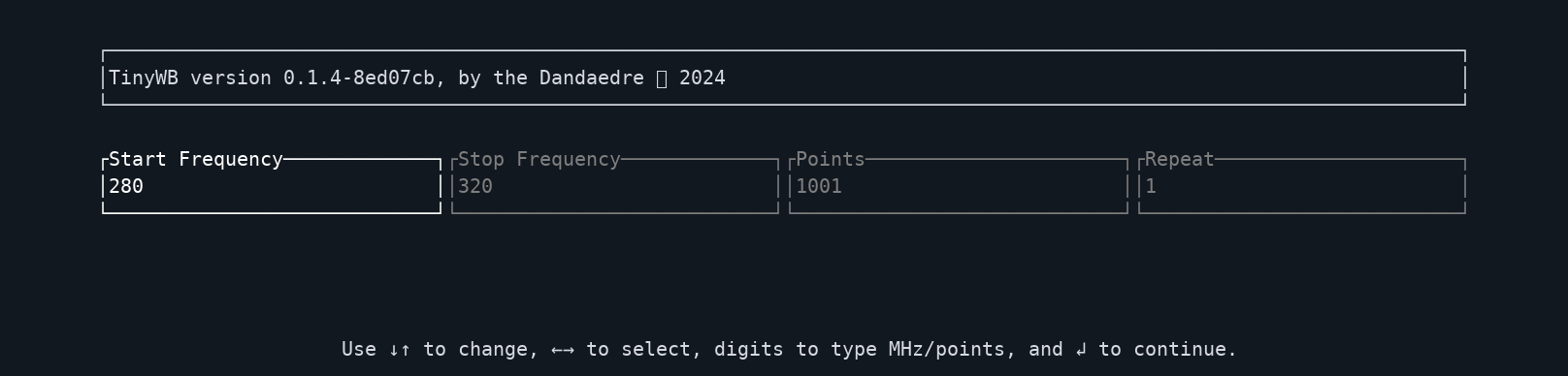
Scan settings in the real application. Screenshots use the mock device; no physical instrument or RF source is needed to reproduce this demonstration.
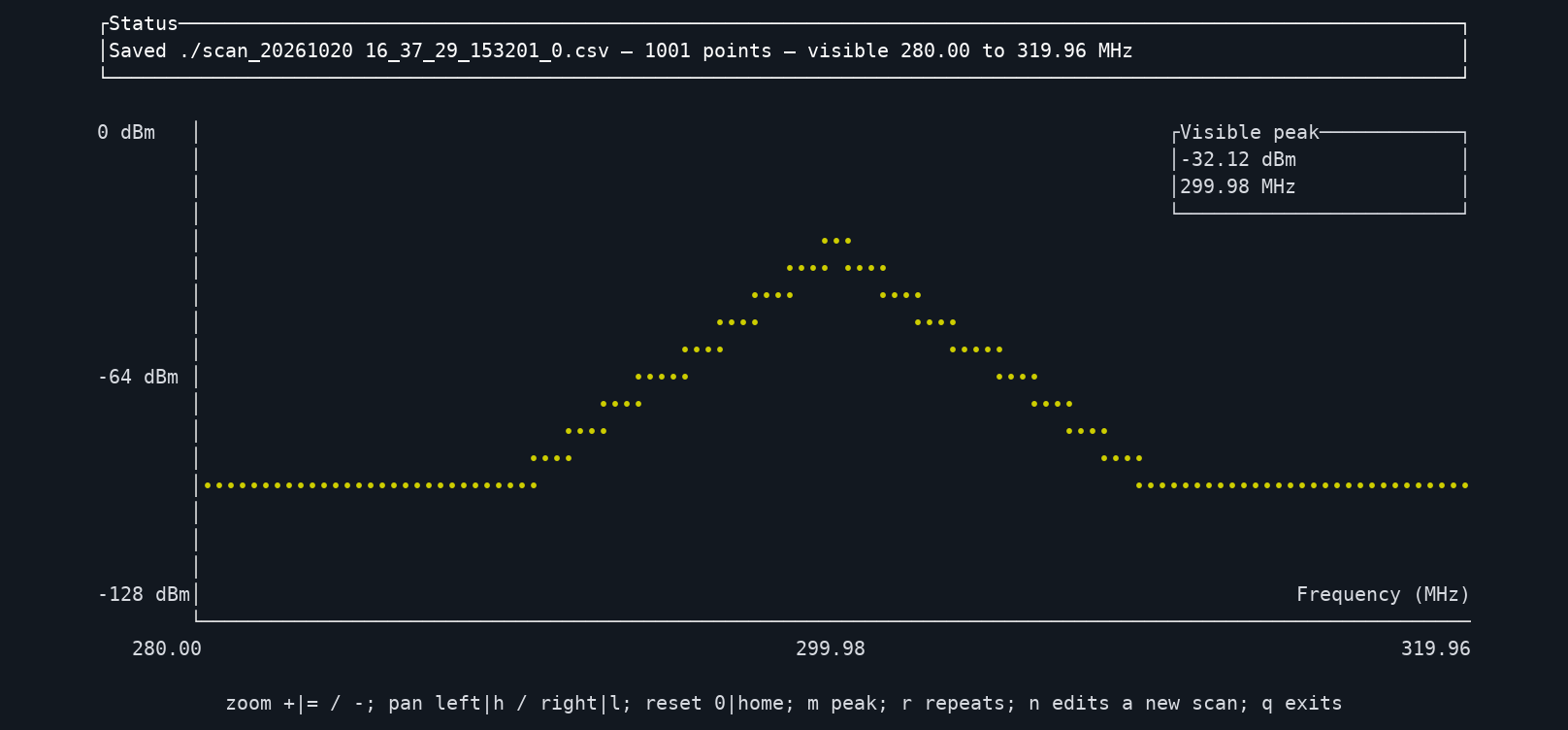
Example result from simulated data, with m pressed to show the peak. Your real trace will depend on the signals and measurement setup.
Explore and save
| Key on the result screen | Action |
|---|---|
m |
Show or hide the strongest visible sample's frequency and level |
+ / - |
Zoom in / out |
| Left / Right | Pan across the frequency range |
0 |
Return to the full range |
r |
Repeat the same scan and save a new CSV |
n |
Edit the settings for a new scan |
q |
Quit |
CSV columns are frequency in MHz, level in dBm; by default there is no
header. Each successful scan gets a new filename. To reopen a saved scan
without connecting a device, replace scan.csv with your file:
cargo run --locked --release -- --view scan.csv
Want repeated sweeps? Start with cargo run --locked --release -- --live, then
choose the connection and range as above. In live mode, s saves the visible
trace and q stops after the current sweep and saves it. See
live controls for averaging and hold modes.
If something does not work
- No port, or access denied? Check the USB cable, close other serial software, and follow the serial-permission guide.
- Timeout or no instrument detected? Check the selected port and power, then consult troubleshooting.
- No tinySA yet? Follow the mock-device walkthrough to try the same screens and CSV workflow with simulated data.
Settings are saved automatically in config.toml. See the
configuration guide for output directories, keyboard
bindings and the TINY_WB_CONFIG override.
Supported instruments and more
Basic low/high acquisition is supported through 960 MHz, subject to input-path limits. Ultra-family normal-mode support covers 0.1–800 MHz; detected Ultra+ ZS406 devices also support 0.1–900 MHz and opt-in Ultra mode through 5.4 GHz. ZS407 extended mode and harmonic reception are not supported. Check the compatibility matrix and Ultra support scope before choosing a wider range. Hardware communications checks do not establish RF accuracy.
- Operations and detailed controls
- Linux, Windows and macOS release builds
- Reusable Rust library
- Development and verification
- Documentation index · Contributor instructions
Report bugs in the issue tracker with the reproduction details.
Licensed under the MIT License.